
These are the questions we are asked most often. If you cannot find yours, please contact us from "Contact us" in the menu (☰).
Questions about pay and settings
Q. Can I change to new settings while keeping past pay (hourly wage and so on)?
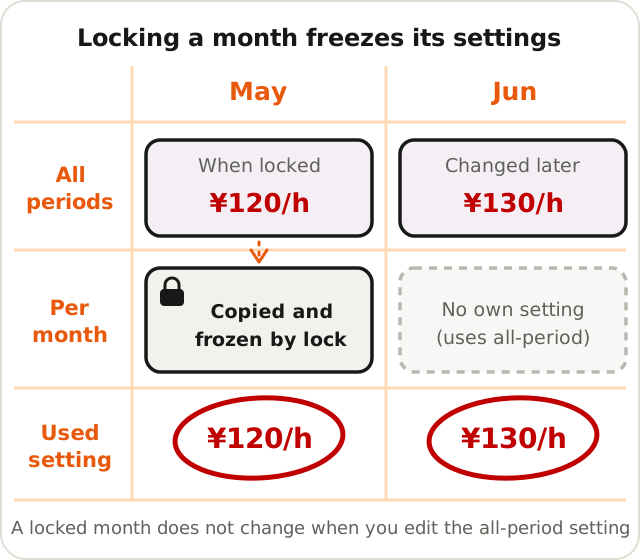
A. Yes. Press the info (ⓘ) button at the top right of a month and choose "Close …" in the menu to "lock" that month; the all-period settings at that moment are copied into the month and fixed. A locked month does not change even if you change the all-period settings later. Use it when your hourly wage changes, for example.
The workplace/job name at the time of locking is also kept. Even if you rename the job later, PDFs, spreadsheets and calendar output for locked months keep the old name (unlocking brings back the current name).
Q. Does it support the premium rate (50% or more) for overtime beyond 60 hours a month?
A. Yes. In the salary settings, enter the rate for the excess (in yen, or base rate × multiplier) in "Overtime rate (over 60 hours a month)" and "Late-night overtime rate (over 60 hours a month)". Only the part of the month's statutory overtime (including late night) beyond 60 hours is calculated with this rate.
Non-statutory overtime within the legal limit and holiday work do not count toward the 60 hours (if you use "overtime beyond 40 hours a week", that part is counted). If left empty (0), the normal overtime rate is used, so existing results do not change.
Q. Does it support overtime beyond 40 hours a week (for example six-day weeks)?
A. Yes. In the working hours settings, tick "Count hours beyond 40 a week as overtime" (off by default).
The part where the week's total (7 days from the week-start day; Sunday by default, changeable) exceeds 40 hours goes into pay as "Overtime (over 40h a week)" at the normal overtime rate. Time that is already overtime (for example beyond 8 hours a day), statutory-holiday work and paid-leave time do not count toward the 40 hours.
Because it is judged on the weekly total, it does not show in the daily view. You can check it in the totals screen, salary totals and PDFs.
Q. Does it support flextime?
A. If you tick "Use flextime" in the working hours settings, the surplus or shortfall against the basic working hours is shown on the month (calendar) screen.
The overtime and late-night overtime breakdown on the totals screen and elsewhere is still calculated day by day. Flextime overtime is properly decided by what exceeds the total for the settlement period (such as a month), so please treat those overtime figures as a reference. Overtime beyond 40 hours a week is also not calculated for flextime periods.
Q. Can I set the monthly total working hours for the one-month variable working-hours system?
A. Yes. In Settings › Attendance hours › How your hours are judged, choose "One-month variable working-hours system" and an input field for "Contracted total hours for the month" appears below it (ver4.15.0 and later).
The one-month variable working-hours system itself has been supported since ver4.13.0.
Q. Does it support a substitute holiday (moving the statutory holiday)?
A. Yes. Use the "Statutory holiday" checkbox on the "Holiday" card of the day screen to change the statutory holiday day by day.
For example, if the statutory holiday is set to Sunday, and in a week you worked on Sunday and moved the day off to Saturday, untick "Statutory holiday" on Sunday and tick it on Saturday. Days you have not changed are judged by the weekday in the settings.
Q. Can I check whether I am over the limits of the Article 36 agreement (45 hours a month, 360 hours a year)?
A. Yes. On the Attendance tab of the totals screen, a warning appears when overtime work (the total of overtime, late-night overtime and overtime beyond 40 hours a week) exceeds 45 hours in a month, or when the total for the last 12 months exceeds 360 hours.
It is for reference only and does not affect pay calculation or PDFs. Overtime within the legal limit and holiday work are not counted.
Q. After I set a closing day, the month or dates differ between the calendar and the list. How should I set it?
A. Three settings are involved. You can change all of them in Settings.
- Closing day: where the counting period is cut (for example, with a 15th closing day, the 16th of the previous month to the 15th). The list, totals and PDFs count by this period.
- Current month / Next month: which month the period is called. For a 15th closing day, the period 3/16 to 4/15 is shown as "April" with "Current month" and as "March" with "Next month".
- Calendar display range: the grid of the monthly calendar. "Show to closing day" lays out the closing period as it is (16th to 15th); "Show to end of month" lays out the calendar 1st to the end of the month.
Choose "Show to closing day" to see it as your workplace counts, or "Show to end of month" to see the same dates and weekdays as an ordinary calendar.
If your start-up screen is the calendar, it opens on the month that includes today. In earlier versions, with "Show to end of month" and a day after the closing day, the next month's calendar opened; ver5.0.0 fixes this.
Questions about leave and shifts
Q. How are paid leave, morning leave, afternoon leave and hourly leave calculated?
A. The calculation depends on whether you entered clock-in and clock-out times. To take half a day of paid leave, choose "Morning leave" or "Afternoon leave" ("Half day" is unpaid). The table below is an example.
Example settings: scheduled 9:00–17:30, break 12:00–13:00 (basic working hours 7:30), hourly wage 1,000 yen
| # | What happened | What you enter | Hours worked | Paid-leave hours | Estimated pay |
|---|---|---|---|---|---|
| 1 | Paid leave all day | Tick paid leave, do not enter times | 0:00 | 7:30 | 7,500 yen |
| 2 | Meant to be on leave but came to work | Tick paid leave and also enter 9:00–17:30 | 7:30 | 0:00 | 7,500 yen (same result) |
| 3 | Morning leave, worked only in the afternoon | Tick morning leave and also enter times (e.g. 13:00–17:30) | 4:30 | 3:45 | 8,250 yen |
| 4 | Left early, took 1:00 of hourly leave | Tick hourly leave 1:00, times 9:00–16:30 | 6:30 | 1:00 | 7,500 yen |
| 5 | Stepped out for 1:00, took hourly leave | Tick hourly leave 1:00, times 9:00–17:30 | 6:30 | 1:00 | 7,500 yen |
| 6 | Unpaid half day off | Tick half day | – | – | – |
The key points are rows 2 and 3.
- Even if you chose paid leave (all day), entering clock-in and clock-out times makes the day count as "worked". Because "times entered = you actually worked those hours", clear any times you entered on a leave day by mistake.
- For morning and afternoon leave, half a day of paid leave is counted even when times are entered (added separately from the hours actually worked). If you "took the morning off and worked only the afternoon", both the afternoon hours you worked and the 0.5 day of paid leave for the morning count in hours and pay.
- "Half day" is unpaid leave. The leave is recorded, but it is not included in hours or pay.
- For hourly leave, just enter the length of time you took. If your working hours fall short of the basic working hours (scheduled hours), the shortfall is filled in automatically. Any hourly leave left over after that is treated as taken during working hours (a step-out) and moved to paid-leave hours.
Q. Do I have to enter clock-in and clock-out times on a full paid-leave day?
A. No. Since ver4.10.0, on a day where you enter an all-day leave such as paid leave, it is counted in the totals and pay without entering times, and no "clock-out not entered" notification arrives.
Note that entering times makes the day count as "worked". If you entered times on a leave day by mistake, clear them. For the exact calculation, see the table under "How are paid leave, morning leave, afternoon leave and hourly leave calculated?" above.
Q. Can I check how many paid-leave days I have left?
A. Yes. Open Paid leave from the menu (☰). Choose the "base month" and enter the number of paid-leave days you were granted; the days used and the days remaining for that year are shown.
The "Carry over from last year" button calculates last year's remainder automatically. A history of each day taken is listed, and tapping a row opens that day. A half day counts as 0.5 day.
⏰ Questions about working hours and breaks
Q. I entered clock-in and clock-out and the working hours came out shorter than I expected. Why?
A. If you use "automatic break", the break is decided automatically according to how long you were at work.
For example, with "in at 8:30, out at 17:15" (8 hours 45 minutes at work), a 45-minute break is deducted and the working hours become "8 hours 00 minutes". You may think "over 8 hours should mean a 1-hour break", but the break becomes 1 hour only once you have been at work for 9 hours. At 8 hours 45 minutes a 45-minute break is still enough, so the working hours come out at exactly 8 hours.
An example for clock-in at 8:30:
| Clock-out | Time at work | Break | Working hours |
|---|---|---|---|
| 14:30 | 6h 00m | 0 min | 6h 00m |
| 14:45 | 6h 15m | 15 min | 6h 00m |
| 16:30 | 8h 00m | 45 min | 7h 15m |
| 17:15 | 8h 45m | 45 min | 8h 00m |
| 17:29 | 8h 59m | 59 min | 8h 00m |
| 17:30 | 9h 00m | 60 min | 8h 00m |
| 18:00 | 9h 30m | 60 min | 8h 30m |
The odd-looking break lengths such as 45 or 59 minutes are intentional. If the break were fixed at exactly 45 or 60 minutes, then on the day you went even one minute over 8 hours the break would suddenly grow by 15 minutes, and you would end up with shorter working hours despite working longer. To prevent that, the break is adjusted little by little around the boundary so that working hours do not suddenly drop.
If you want to decide the break yourself for one day, tick "Do not use the break time from settings" in the "Break" section of the Day screen and enter the break start and end times directly.
The automatic break calculation in Kintaisan is built to always meet the break rules of the Labor Standards Act (at least 45 minutes when you work over 6 hours, at least 1 hour when over 8 hours). Even if the numbers in the table look odd, they never fall below the legal minimum.
Q. Can I record business trips, remote work and other ways of working that are not shifts?
A. Yes. Register the kind of work as a tag, and one tap on the tag button on the day screen or in the list puts it on that day. Open "Tags, shift names and times" from Settings in the menu (☰) to register. A name can be up to 3 characters, and you can register up to 8.
- Business trip: Name it something like "Biz" and enter your usual clock-in and clock-out times. With the times entered, the day also counts as working hours. If you get a fixed business-trip allowance, enter the amount under "Allowance" and it is added automatically on the day you press the tag.
- Remote work: Name it "WFH" and enter the clock-in and clock-out times for a remote day. Set the calendar display to "Tag" to see remote days at a glance.
- Training: Name it something like "Trn" and enter the training hours. Changing the color makes it easy to tell apart on the calendar.
A day can have only one tag. You cannot put "Day shift" and "Remote" on the same day. When they overlap, register the combination as a separate tag with a short name, or write it in the note on the day screen.
Q. How do I enter a night shift (work that crosses midnight)?
A. After entering clock-in (for example 22:00), enter the next morning's time (for example 6:00) as clock-out and "Does this shift cross midnight?" appears. Choose "Next day" and the clock-out is entered as a time past 24:00 such as "30:00" (48-hour notation). You can also choose "Treat as next day (use 48-hour notation)" in the time entry dialog. The latest time you can enter is 47:59.
Work that crosses midnight is treated as a record of the day you clocked in. For the day after a night shift, choose "After a night shift" under "Leave" on the day screen and you can count those days under "Count" in the calendar.
If the work would exceed 16 hours, you are asked to confirm in case of a mistaken tap.
Q. How is the late-night premium (22:00 to 5:00) calculated?
A. Work between 22:00 and 5:00 is classified as late-night work. It is calculated with the "Late-night rate" in the salary settings (a multiplier on the base rate, or an amount), and time that overlaps overtime uses the "Late-night overtime rate". The part that falls on a holiday uses the "Late-night holiday rate" (for a statutory holiday, the "Statutory holiday late-night rate"). The Attendance tab of the totals screen shows late-night hours and late-night overtime hours.
If you want to set an hourly wage itself for each time band, the fixed hourly wage mode also lets you use hourly wages by time band (up to 5).
Questions about output and display
Q. I saved a PDF but cannot open it. Sometimes the text is garbled or dates are missing.
A. First, check that your phone has an app that can open PDFs (Google Drive, Chrome, a PDF viewer and so on). If you see "app not found", no app that opens PDFs is installed.
Garbled text or missing dates were bugs in older versions. If updating to the latest version from the store does not fix it, please use "Contact us" in the menu and tell us your device name and OS version.
Q. Can the monthly calendar show tags and clock-in/clock-out times?
A. Yes. On the Month (calendar) screen, the bar at the bottom switches between "Time", "Tag", "Count" and "Cell". "Cell" makes each day one square that can show start, end, working hours, tags and more (the contents and number of columns can be changed with the settings icon (⚙️) on the screen).
In ver5.0.0, "Time" and "Tag" can also be shown side by side.
Q. I want to change the first screen shown when I open the app.
A. In Settings › App-wide settings › Startup settings you can choose HOME, calendar, list, day or history. If you have several workplaces, the one selected first is also chosen here.
Questions about data, devices, ads and contacting us
Q. Can I carry my records over when I change phones?
A. Yes. If you use your phone's transfer feature (Android's "copy data from your old device" or Galaxy's Smart Switch), everything moves over as it is.
If it did not move, create the kintaisan_backup folder from "Backup" in the menu on the old phone, move that whole folder to the new phone, and open "Restore". See Backup/Restore for the steps. Restoring overwrites the records already on the new phone.
Q. Can I choose where the backup is saved (for example an SD card)?
A. Yes. Press "Change save location" under "Backup" in the menu and choose any place, such as internal storage or an SD card. Once chosen, the app backs up automatically every 30 days and keeps the last three.
Do not delete or rename the files inside the kintaisan_backup folder created at the save location.
Q. I want fewer ads, or none.
A. From "Paid features such as ad removal" in the menu, you can use a paid plan that hides ads.
Even on the free plan, ads appear only at natural breaks such as after you finish entering something, and never while a dialog or sheet is open (ver4.17.1 and later). What ads are shown is decided by Google's ad system, so we cannot choose it. Please report unpleasant ads with the ad's report button.
Even without a paid plan, you can use "hearts", earned by watching ads, to hide ads for a day. See How hearts work for details.
Q. What are hearts, and how do I use them?
A. Hearts let you watch ads on your own terms and then hide ads on a day you choose. You find them in the menu that opens when you press the info (ⓘ) button at the top right.
- Watch an ad: one ad earns half a heart, two ads earn one. You can keep up to 5. A heart is earned only if you watch the ad to the end.
- Use a heart: using one hides both the banner at the bottom and the full-screen ads for that day. Pressing it again the same day costs nothing more.
- Use automatically: when on, one heart is used automatically on each day you open the app, if you have one. It is off at first.
- Hearts do not run down with time. If you do not use them, they stay.
- If you have the ad-free plan, no ads are shown, so the menu does not show hearts.
A red dot on the info (ⓘ) button means last month has not been closed yet. The menu shows a note at the top: use "Open last month" to move there, and close it with "Close …" once your records are final. For locking, see how to keep past pay data when you change settings.
Q. A workplace (job) I registered is no longer shown.
A. Without a paid plan you can use up to 5 workplaces/jobs (up to 30 with the Extra features plan). If more than the free limit had been registered before, the ones over the limit are not shown now. They have not disappeared; they are just not displayed, and they appear again with the Extra features plan.
You can change the order of the workplaces with "Reorder" under Job names.
Q. Where can I send bug reports or requests?
A. Send them from "Contact us" in the menu (☰). For a bug, please include the app version (shown at the top of the menu), your device name, the OS version and what you did, which makes the cause easier to find.
We also read Google Play reviews, but for anything that needs a back-and-forth, the contact form is more reliable.